

Calibration Certificate Portal Guide
Learn how to access your calibration certificates, check equipment status, request calibration quotations and manage your portal account.
Your calibration certificates in one place
The Calibration Certificate Portal stores the calibration certificates for your equipment in PDF format. Certificates can be viewed or downloaded at any time, while older certificates can be moved into the Archive and retained for future reference.
Subscriber
The Subscriber is the main administrator for your organisation. Subscribers can manage Sub Users, archive certificates, delete files and change portal settings.
Sub User
Sub Users have their own portal login and can view and download certificates. Administrative controls are not available.
Portal guides
Select an area below to open the relevant guide.
01. Login and Access
The portal supports two levels of access: Subscriber and Sub User.
Sub User: A standard user created by the Subscriber.
Logging in
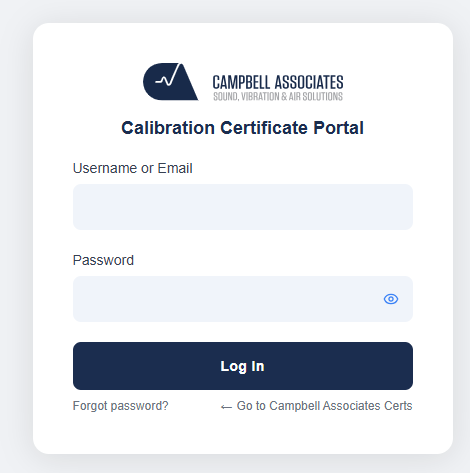
You can log in using either your username or your email address. Your password is the same for both login methods.
02. Dashboard
The Dashboard provides quick access to statistics relating to the certificates stored within your portal.
Selecting one of the Dashboard categories displays detailed information for the selected category.
Subscriber Dashboard
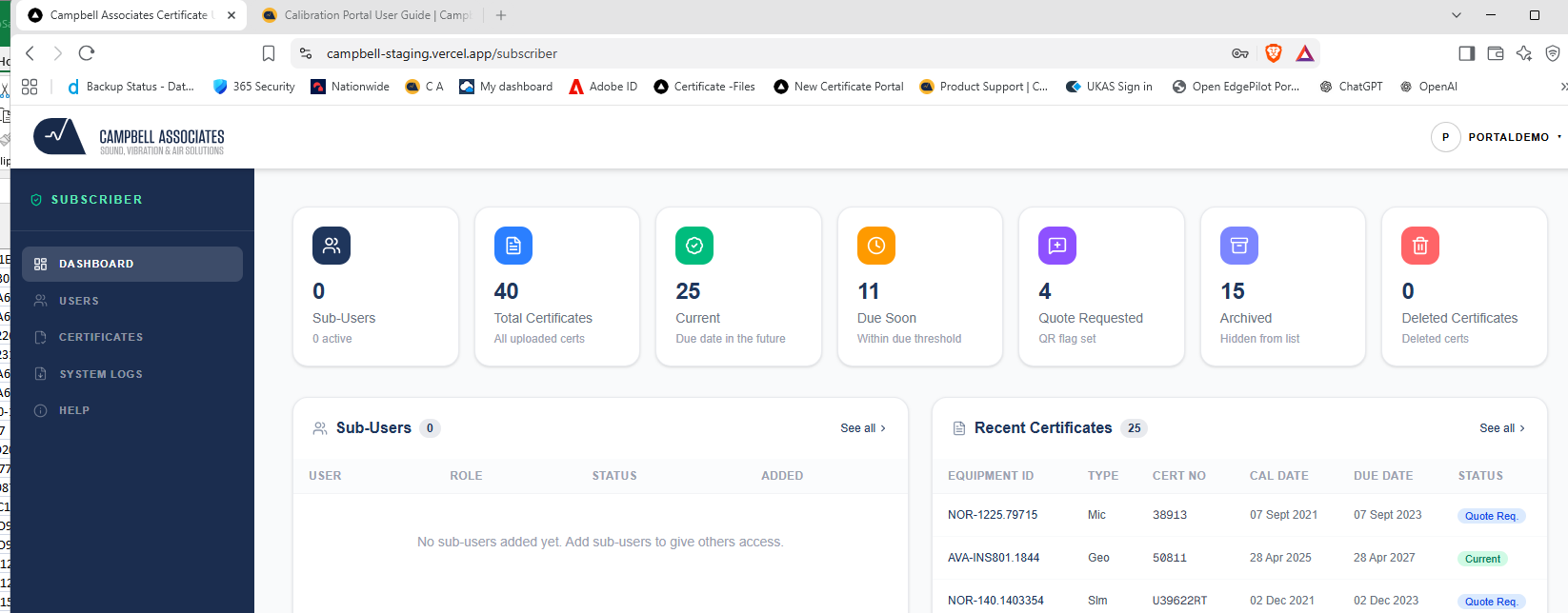
Selecting a Dashboard category
Select a category at the top of the Dashboard to display the information associated with that category.
Sub User Dashboard
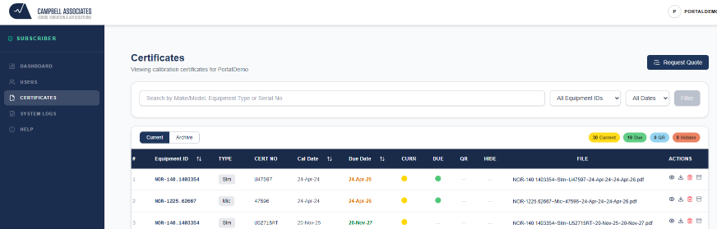
Sub Users see a reduced Dashboard containing the certificate information relevant to their level of access.
03. Certificates
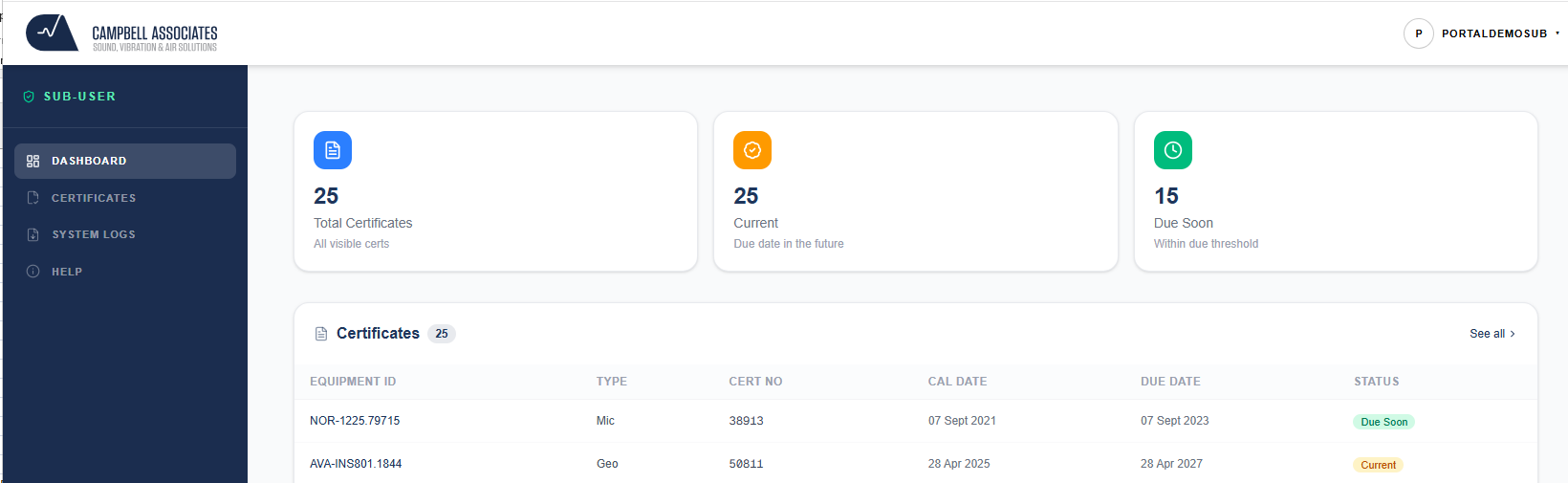
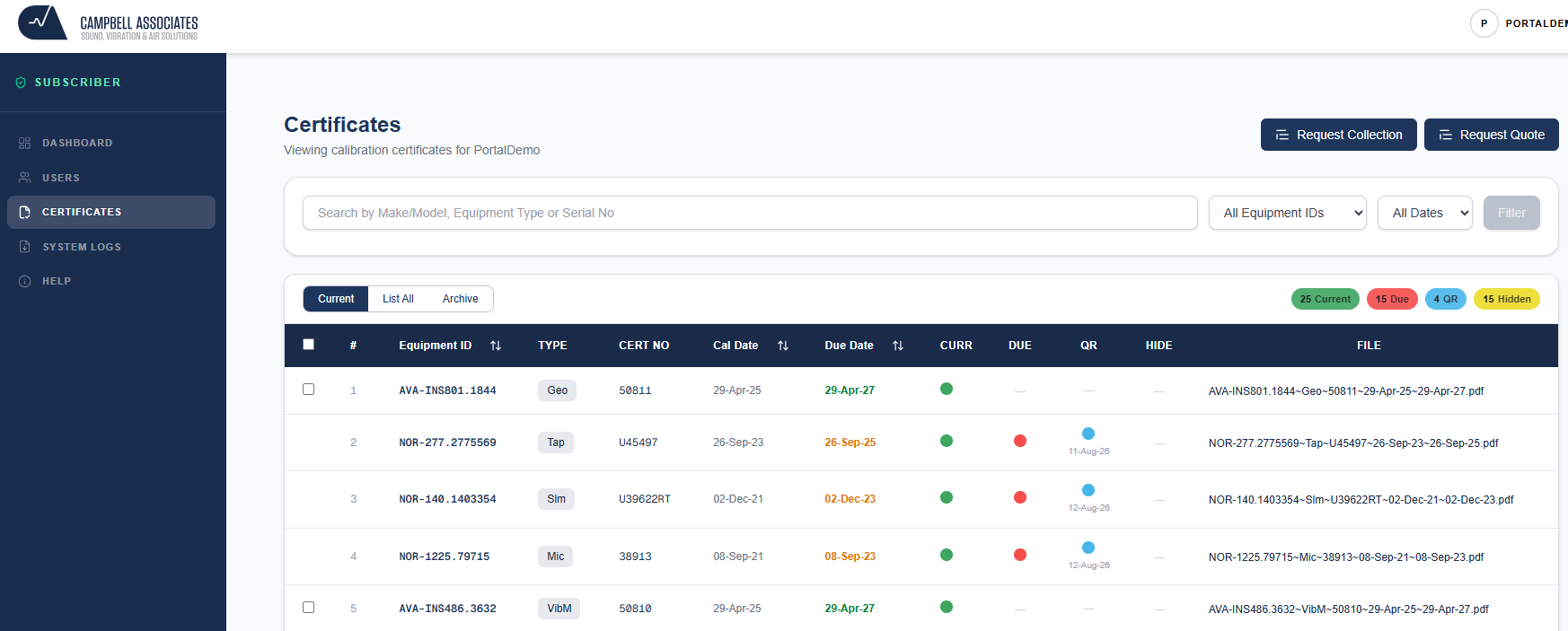
The Certificates page displays all calibration certificates available within your portal.
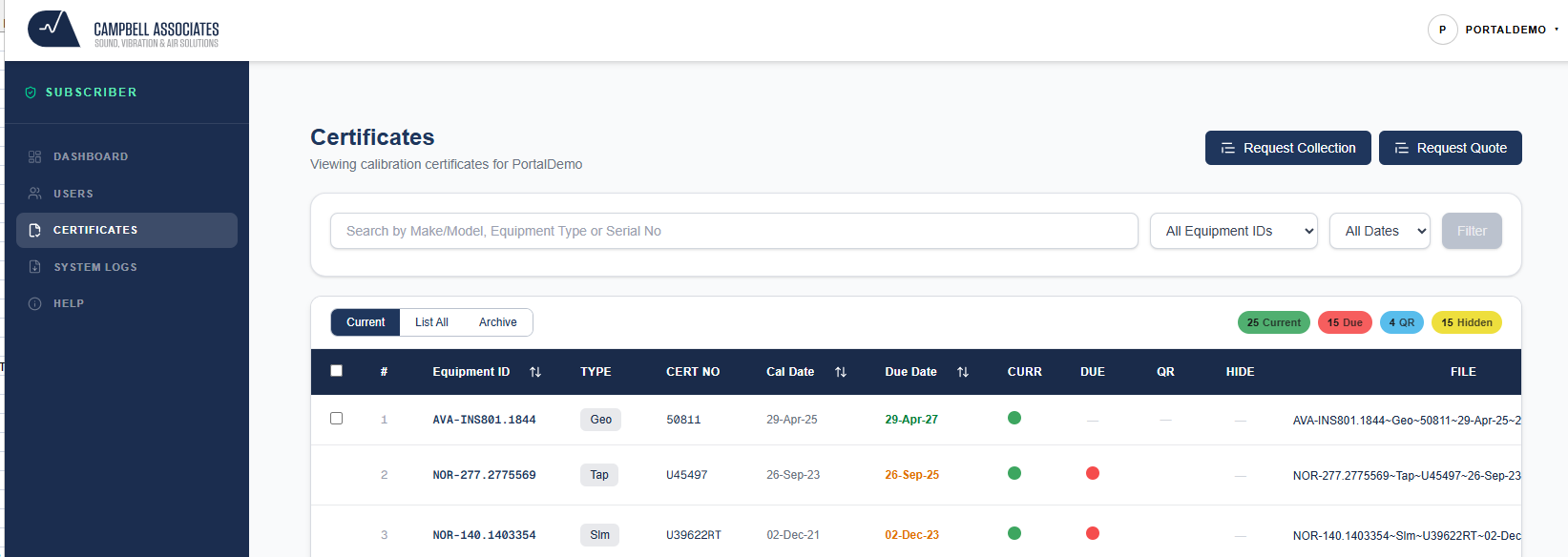
Current valid certificates are shown on the Current tab by default. Additional tabs are available for Archived certificates and List All.
Certificate information is displayed in a table containing information such as equipment model, serial number, calibration date and due date. This makes certificates for individual items of equipment easier to locate.
Certificate status flags
Indicates that this is the current calibration certificate.
Indicates that the equipment is approaching its calibration due date.
Indicates that a quotation request has been issued.
Indicates that the certificate has been moved into the Archive.
Certificate actions
Subscriber certificate view
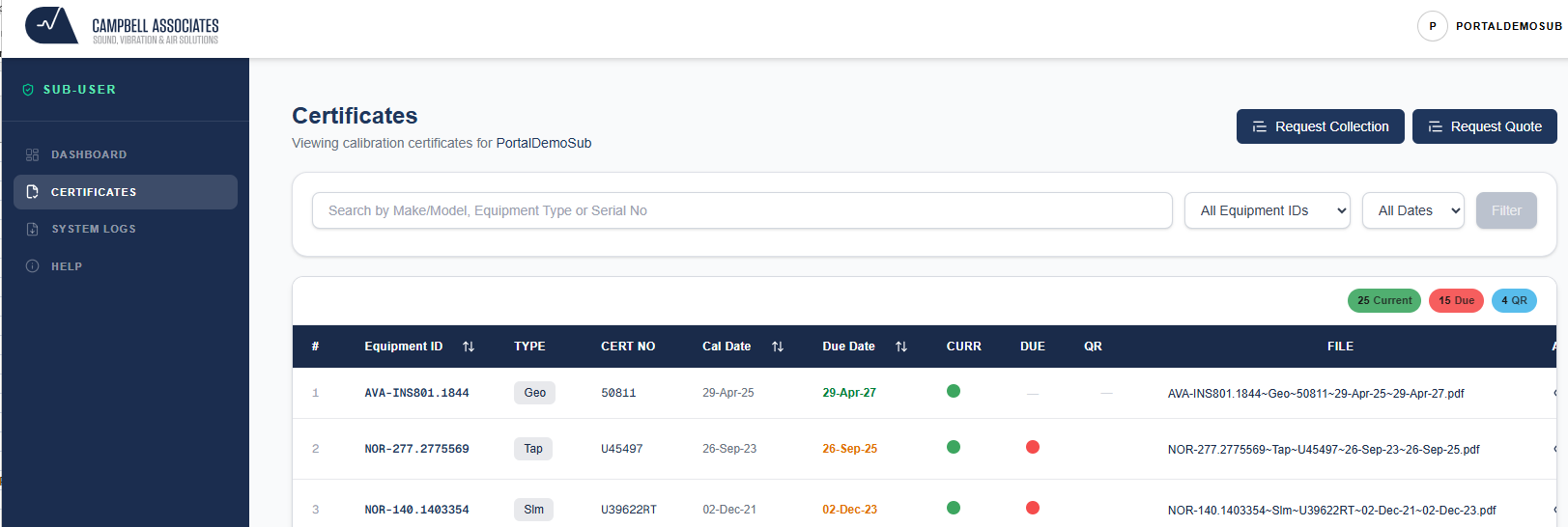
Sub User certificate view
Sub Users can view and download certificates but do not have access to the Delete or Archive functions.
04. Request a Calibration Quote
The portal can generate a quotation request listing the equipment that requires calibration together with any special calibration or testing requirements.
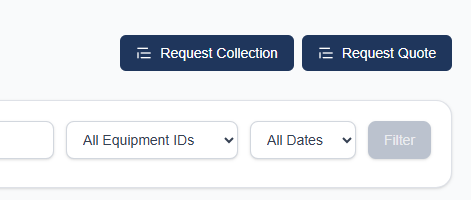
Start a quotation request
Select the Request Quote option from the Certificates page.
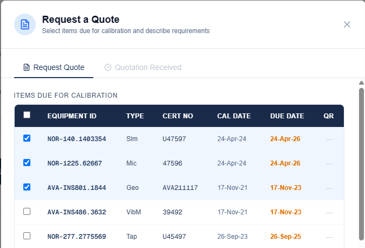
The portal displays items currently marked with the Due flag.
Tick each item that you want to include within the quotation request.
Enter the calibration service required and any additional test requirements.
The quotation request will be generated and sent.
Equipment included in the request will be marked with the blue QR status flag.
Select equipment
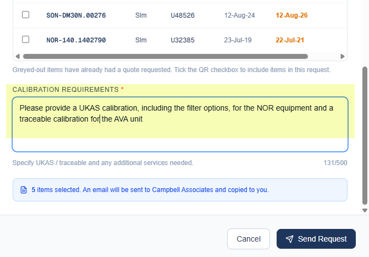
Enter your calibration requirements
Complete the Calibration Requirements box with details of the calibration service required.
This may include UKAS or Traceable calibration together with additional requirements such as filters, reverberation time, one time measurements or other functions requiring calibration.
Quotation requested status
After the request has been sent, selected equipment is marked with a blue QR flag together with the date that the quotation request was generated.
05. Mark a Quotation as Received
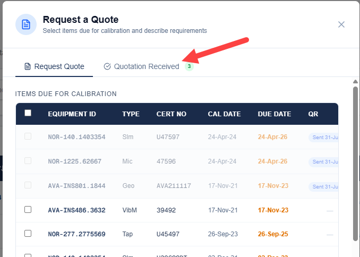
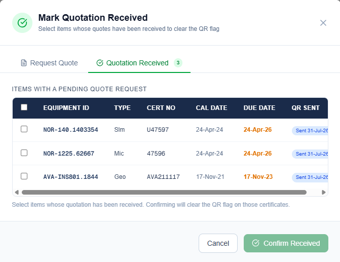
Once the new calibration certificate has been received, open the Request Quote form and select the Quotation Received tab.
Quotation Received tab
Confirm receipt
06. System Logs
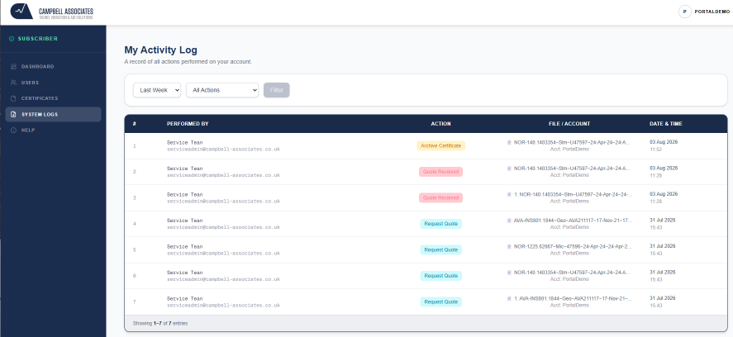
The System Logs maintain a record of activities performed within the portal.
Logs can be filtered by time period, including Last Week, Last Month, Any Time, or a custom period.
You can also filter the logs by activity type, such as quotation requests and certificate uploads.
07. Subscriber Controls
The Subscriber is the portal administrator and has access to additional administrative functions and controls that are not available to Sub Users.
Subscriber menu
Select your username in the top right corner of the portal to access your account options.
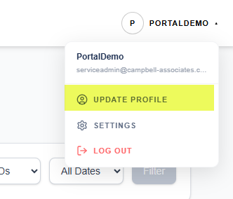
Update your profile
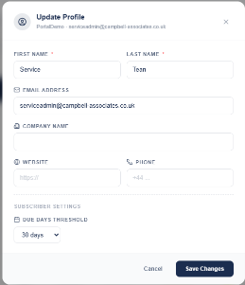
Select Update Profile to review and update your personal and account information.
This also allows the Subscriber details to be updated if responsibility for managing the portal moves to another member of staff.
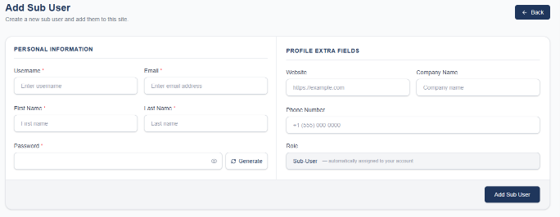
Add a Sub User
The Subscriber can create additional Sub User accounts, allowing other members of your organisation to access the portal using their own login details.
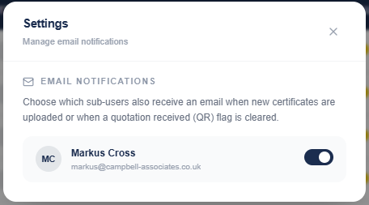
Email notifications
Sub Users are automatically configured to receive relevant portal email notifications.
The Subscriber can enable or disable notifications for individual users through Settings.

08. Calibration Due Date Settings
Each time the page is opened, the system reviews calibration due dates and updates the Due flag accordingly.
As this process takes place when the page is generated, there may be a brief delay before all records are displayed and fully up to date.
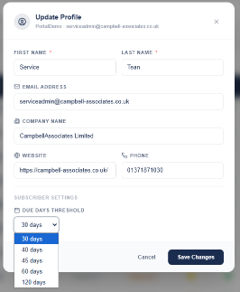
Default Due period
The default Due period is 30 days. The Due flag is therefore displayed when an item's calibration due date falls within 30 days.
Changing the Due period
The Subscriber can select a different period depending on the requirements of your organisation.
Need help with the Calibration Portal?
If you cannot find the information you need, contact Campbell Associates and our team will be happy to assist.
Contact Campbell Associates